Monday, 16 August 2021

How to Create a 3D Black and Gold Text and Logo Mockup

 Tutorial Assets

The following assets were used during this tutorial:

Raleway font

Blue background

Before you start creating our text mockup, download and install the font and also download the background.

1. Load a Document Background

We will use the blue background from the Tutorial Assets as our document background. It is a 2000 x 3000 px JPG file. Go to File > Open and open the blue-background.jpg.

2. Create a Smart Object

In these steps you will create the main smart object.

Step 1

Create a new layer by going to Layer > New > Layer, name this layer Hide me and hit OK. Fill this layer with any colour—for example, to fill it with the background colour, hit Control-Delete.

Step 2

Pick the Type Tool and select the Raleway font. Set the Font Style to Black and the Font Size to 635 pt, and select Center text. Now write BLACK GOLD in the center of the document, on two lines and all uppercase.

Step 3

Select the BLACK GOLD layer in the Layers panel, hold Control and select the Hide me layer. While both layers are selected, go to Layer > Smart Objects > Convert to Smart Object.

Step 4

Right click on the BLACK GOLD smart object layer and choose Edit Contents to open the smart object.

Step 5

Delete the Hide me layer in the Layers panel. Then close the BLACK GOLD.psb document and hit Yes to save changes.

Step 6

Select the BLACK GOLD layer, go to Layer > Rename Layer, and change its name to Gold.

3. Create the Shrinking Action

The last step, before we can start creating the main effect, is to create a small action which will be very helpful, as you will see later.

Step 1

Right-click the Gold layer in the Layers panel and select Duplicate Layer. Change the name to Action and hit OK.

Step 2

Open the Actions panel with Alt-F9, and then hit the Create new set button at the bottom and name it Shrinking Action. Hit OK.

Step 3

Select the Action layer in your Layers panel and then hit the Create new action button at the bottom of the Actions panel. Change the name to Shrink and hit Record.

Step 4

Hit Control-J to duplicate the Action layer.

Step 5

Go to Layer > Arrange > Send Backward. This step will move the Action copy layer under the Action layer.

Step 6

Transform the selected layer with Control-T and set the horizontal scale to W: 99.93% and the vertical scale to H: 99.90%. Hit the Enter key twice to apply the transformation.

Step 7

Hit the Stop button at the bottom of the Actions panel and delete the Action and Action copy layers from your Layers panel. The Shrink action is now ready to be used.

4. Create the 3D Effect

In this part we will be creating multiple layers using the previously created action.

Step 1

Select the Gold layer in your Layers panel and then select the Shrink action in your Actions panel.

Step 2

Now we will create 105 layers for the 3D effect. Hit the Play button at the bottom of the Actions panel to play the action, and keep hitting the Play button until it creates the Gold copy 105 layer in your Layers panel.

Step 3

Select layer Gold copy 105, go to Layer > Duplicate layer, and name it Shadow. Then move this layer backwards by going to Layer > Arrange > Send Backward.

Step 4

Let's make some groups and clean up our Layers panel a little bit. Select the layer Gold copy and Shift-click the Gold copy 19 layer to select these layers and all between. Hit Control-G to make a group, and then go to Layer > Rename group and name it Effect 1.

Step 5

Select the layer Gold copy 20 and then Shift-click the Gold copy 29 layer to select these layers and all between. Hit Control-G on your keyboard to make a group, and then go to Layer > Rename group and name it Effect 2.

Step 6

Select the layer Gold copy 30 and then Shift-click the Gold copy 39 layer to select these layers and all between. Hit Control-G on your keyboard to make a group, and then go to Layer > Rename group and name it Effect 3.

Step 7

Select the layer Gold copy 40 and then Shift-click the Gold copy 59 layer to select these layers and all between. Hit Control-G to make a group, and then go to Layer > Rename group and name it Effect 4.

Step 8

Select the layer Gold copy 60 and then Shift-click the Gold copy 89 layer to select these layers and all between. Hit Control-G to make a group, and then go to Layer > Rename group and name it Effect 5.

Step 9

Select the layer Gold copy 90 and then Shift-click the Gold copy 94 layer to select these layers and all between. Hit Control-G to make a group, and then go to Layer > Rename group and name it Effect 6.

Step 10

Select the layer Gold copy 95 and then Shift-click the Gold copy 100 layer to select these layers and all between. Hit Control-G to make a group, and then go to Layer > Rename group and name it Effect 7.

Step 11

Select the layer Gold copy 101 and then Shift-click the Gold copy 105 layer to select these layers and all between. Hit Control-G to make a group, and then go to Layer > Rename group and name it Effect 8.

5. Add Layer Styles

Step 1

Select the layer Gold and Double-click the layer to apply the following layer style:

Add a Bevel & Emboss with these settings:

Style: Inner Bevel

Technique: Smooth

Depth: 32%

Direction: Down

Size: 3 px

Uncheck the Use Global Light box

Angle: -81°

Altitude: 26°

Select Gloss Contour: Ring - Double

Highlight Mode: Linear Dodge (Add) with a color #ffffff and Opacity: 18%

Shadow Mode: Linear Burn with a color #171718 and Opacity: 33%

Step 2

Add a Stroke with these settings:

Size: 3 px

Position: Inside

Blend Mode: Normal

Fill Type: Gradient

Style: Angle

Angle: 90°

Check Dither box

Scale: 150%

Click on the Gradient and set these color stops:

Color stop with a Color: #7a6b37 on Location: 7%

Color stop with a Color: #84753f on Location: 43%

Color stop with a Color: #7d6d37 on Location: 70%

Color stop with a Color: #ffe785 on Location: 85%

7 color stops with a Color: #f7c753 on these Locations: 0%, 13%, 19%, 48%, 63%, 81% and 100%

5 color stops with a Color: #c59f44 on these Locations: 16%, 27%, 55%, 75% and 93%

Step 3 

Add a Satin style with these settings:

Blend Mode: Linear Burn with the color #afa182

Opacity: 4%

Angle: 0°

Distance: 22 px

Size: 1 px

Check the Invert box

Step 4

Add a Color Overlay with these settings:

Blend Mode: Linear Burn

Pick the color #000000

Opacity: 7%

Step 5

Add a Gradient Overlay with these settings:

Blend Mode: Normal

Check the Dither box

Opacity: 100%

Style: Linear

Angle: 67°

Scale: 100%

Click on the Gradient and set these color stops:

Color stop 1 - Color: #010202 Location: 11%

Color stop 2 - Color: #737373 Location: 34%

Color stop 3 - Color: #010202 Location: 58%

Color stop 4 - Color: #737373 Location: 75%

Color stop 5 - Color: #010202 Location: 100%

Hit OK to apply all of the changes.

Step 6

Collapse the Effect 1 group, select the layer Gold copy, and Double-click the layer to apply the following layer style:

Add an Inner Glow with these settings:

Blend Mode: Linear Dodge (Add)

Opacity: 14%

Pick the color #ffffff

Technique: Precise

Source: Edge

Choke: 100%

Size: 136 px

Check the Anti-aliased box

Step 7

Add a Color Overlay with these settings:

Blend Mode: Color

Pick the color #fee691

Opacity: 100%

Step 8

Add a Gradient Overlay with these settings:

Blend Mode: Normal

Check the Dither box

Opacity: 100%

Style: Reflected

Angle: 90°

Scale: 150%

Click on the Gradient and set these color stops:

4 color stops with a Color: #7a6b37 on these Locations: 7%, 23%, 58% and 89%

Color stop with a Color: #84753f on Location: 43%

2 color stops with a Color: #7d6d37 on these Locations: 70% and 100%

5 color stops with a Color: #ffe785 on these Locations: 4%, 25%, 39%, 85% and 97%

6 color stops with a Color: #f7c753 on these Locations: 0%, 13%, 19%, 48%, 63% and 81%

5 color stops with a Color: #c59f44 on these Locations: 16%, 34%, 55%, 75% and 93%

Step 9

The same gradient will be used in the next steps, so let's save it to our gradient Presets by pressing the New button. Then hit OK to apply all of the changes.

Step 10

Right click with your mouse on the Gold copy layer and select Copy Layer Style, and then Shift-left click the layer Gold copy 19. While all of these layers are selected, right click on any of these layers and select Paste Layer Style. This will apply the same style from the Gold copy layer to all the selected ones.

Step 11

Close the Effect 1 group and collapse the Effect 2 group. Select the layer Gold copy 20 and Double-click the layer to apply the following layer style:

Add an Inner Glow with these settings:

Blend Mode: Linear Dodge (Add)

Opacity: 7%

Pick the color #ffffff

Technique: Precise

Source: Edge

Choke: 100%

Size: 136 px

Check the Anti-aliased box

Step 12

Add a Color Overlay with these settings:

Blend Mode: Color

Pick the color #fee691

Opacity: 100%

Step 13

Add a Gradient Overlay with these settings:

Blend Mode: Normal

Check the Dither box

Opacity: 100%

Style: Reflected

Angle: 90°

Scale: 150%

Click on the Gradient and select the previously saved gradient from Presets.

Hit OK to apply all of the changes.

Step 14

Right click with your mouse on the Gold copy 20 layer and select Copy Layer Style, and then Shift-left click the layer Gold copy 29. While all of these layers are selected, right click on any of these layers and select Paste Layer Style.

Step 15

Close the Effect 2 group and collapse the Effect 3 group. Select the layer Gold copy 30 and Double-click the layer to apply the following layer style:

Add an Inner Glow with these settings:

Blend Mode: Linear Dodge (Add)

Opacity: 3%

Pick the color #ffffff

Technique: Precise

Source: Edge

Choke: 100%

Size: 136 px

Check the Anti-aliased box

Step 16

Add a Color Overlay with these settings:

Blend Mode: Color

Pick the color #fee691

Opacity: 100%

Step 17

Add a Gradient Overlay with these settings:

Blend Mode: Normal

Check the Dither box

Opacity: 100%

Style: Reflected

Angle: 90°

Scale: 150%

Click on the Gradient and select the previously saved gradient from Presets.

Hit OK to apply all of the changes.

Step 18

Right click with your mouse on the Gold copy 30 layer and select Copy Layer Style, and then Shift-left click the layer Gold copy 39. While all of these layers are selected, right click on any of these layers and select Paste Layer Style.

Step 19

Close the Effect 3 group and collapse the Effect 4 group. Select the layer Gold copy 40 and Double-click the layer to apply the following layer style:

Add a Color Overlay with these settings:

Blend Mode: Color

Pick the color #fee691

Opacity: 100%

Step 20

Add a Gradient Overlay with these settings:

Blend Mode: Normal

Check the Dither box

Opacity: 100%

Style: Reflected

Angle: 90°

Scale: 150%

Click on the Gradient and select the previously saved gradient from Presets.

Hit OK to apply all of the changes.

Step 21

Right click with your mouse on the Gold copy 40 layer and select Copy Layer Style, and then Shift-left click the layer Gold copy 59. While all of these layers are selected, right click on any of these layers and select Paste Layer Style.

Step 22

Close the Effect 4 group and collapse the Effect 5 group. Select the layer Gold copy 60 and Double-click the layer to apply the following layer style:

Add an Inner Glow with these settings:

Blend Mode: Linear Burn

Opacity: 3%

Pick the color #000000

Technique: Precise

Source: Edge

Choke: 100%

Size: 136 px

Check the Anti-aliased box

Step 23

Add a Color Overlay with these settings:

Blend Mode: Color

Pick the color #fee691

Opacity: 100%

Step 24

Add a Gradient Overlay with these settings:

Blend Mode: Normal

Check the Dither box

Opacity: 100%

Style: Reflected

Angle: 90°

Scale: 150%

Click on the Gradient and select the previously saved gradient from Presets.

Hit OK to apply all of the changes.

Step 25

Right click with your mouse on the Gold copy 60 layer and select Copy Layer Style, and then Shift-left click the layer Gold copy 89. While all of these layers are selected, right click on any of these layers and select Paste Layer Style.

Step 26

Close the Effect 5 group and collapse the Effect 6 group. Select the layer Gold copy 90 and Double-click the layer to apply the following layer style:

Add an Inner Glow with these settings:

Blend Mode: Linear Burn

Opacity: 10%

Pick the color #000000

Technique: Precise

Source: Edge

Choke: 100%

Size: 136 px

Check the Anti-aliased box

Step 27

Add a Color Overlay with these settings:

Blend Mode: Color

Pick the color #fee691

Opacity: 100%

Step 28

Add a Gradient Overlay with these settings:

Blend Mode: Normal

Check the Dither box

Opacity: 100%

Style: Reflected

Angle: 90°

Scale: 150%

Click on the Gradient and select the previously saved gradient from Presets.

Hit OK to apply all of the changes.

Step 29

Right click on the Gold copy 90 layer and select Copy Layer Style, and then Shift-left click the layer Gold copy 94. While all of these layers are selected, right click on any of these layers and select Paste Layer Style.

Step 30

Close the Effect 6 group and collapse the Effect 7 group. Select the layer Gold copy 95 and Double-click the layer to apply the following layer style:

Add an Inner Glow with these settings:

Blend Mode: Linear Burn

Opacity: 16%

Pick the color #000000

Technique: Precise

Source: Edge

Choke: 100%

Size: 136 px

Check the Anti-aliased box

Step 31

Add a Color Overlay with these settings:

Blend Mode: Color

Pick the color #fee691

Opacity: 100%

Step 32

Add a Gradient Overlay with these settings:

Blend Mode: Normal

Check the Dither box

Opacity: 100%

Style: Reflected

Angle: 90°

Scale: 150%

Click on the Gradient and select the previously saved gradient from Presets.

Hit OK to apply all of the changes.

Step 33

Right click on the Gold copy 95 layer and select Copy Layer Style, and then Shift-left click the layer Gold copy 100. While all of these layers are selected, right click on any of these layers and select Paste Layer Style.

Step 34

Close the Effect 7 group and collapse the Effect 8 group. Select the layer Gold copy 101 and Double-click the layer to apply the following layer style:

Add an Inner Glow with these settings:

Blend Mode: Linear Burn

Opacity: 22%

Pick the color #000000

Technique: Precise

Source: Edge

Choke: 100%

Size: 136 px

Check the Anti-aliased box

Step 35

Add a Color Overlay with these settings:

Blend Mode: Color

Pick the color #fee691

Opacity: 100%

Step 36

Add a Gradient Overlay with these settings:

Blend Mode: Normal

Check the Dither box

Opacity: 100%

Style: Reflected

Angle: 90°

Scale: 150%

Click on the Gradient and select the previously saved gradient from Presets.

Hit OK to apply all of the changes.

Step 37

Right click with your mouse on the Gold copy 101 layer and select Copy Layer Style, and then Shift-left click the layer Gold copy 105. While all of these layers are selected, right click on any of these layers and select Paste Layer Style.

6. Create Shadows

Step 1

Select the layer Shadow and hit Control-J on your keyboard twice to make two duplicates of this layer.

Step 2

Select the layer Shadow and hit Control-T, and then add 20 px to the horizontal position X: and also add 30 px to the vertical position Y: The position values shown in the picture below may be different from yours.

Hit Enter to apply the changes.

Step 3

Double-click the layer Shadow to apply the following layer style:

Change the Blending Options with these settings:

Opacity: 35%

Step 4

Add a Color Overlay with these settings:

Blend Mode: Normal

Pick the color #312000

Opacity: 100%

Step 5

Add a Drop Shadow with these settings:

Blend Mode: Multiply

Pick the color #010101

Opacity: 75%

Uncheck the Use Global Light box before setting an Angle: 120°

Distance: 17 px

Spread: 0%

Size: 5 px

Hit OK to apply all changes.

Step 6

Go to Filter > Blur > Gaussian Blur, set the Radius to 4.3 pixels, and hit OK.

Step 7

Go to Filter > Blur > Motion Blur, set the Angle: -60° and Distance: 97 pixels, then hit okay

Step 8

Select layer Shadow copy and Double-click the layer to apply the following layer style:

Change the Blending Options with these settings:

Fill Opacity: 0%

Step 9

Add a Drop Shadow with these settings:

Blend Mode: Linear Burn

Pick the color #000000

Opacity: 47%

Uncheck the Use Global Light box before setting an Angle: 124°

Distance: 0 px

Spread: 50%

Size: 2 px

Hit OK to apply all changes.

Step 10

Select layer Shadow copy 2 and Double-click the layer to apply the following layer style:

Change the Blending Options with these settings:

Opacity: 50%

Fill Opacity: 0%

Step 11

Add a Color Overlay with these settings:

Blend Mode: Normal

Pick the color #000000

Opacity: 100%

Step 12

Add a Drop Shadow with these settings:

Blend Mode: Linear Burn

Pick the color #000000

Opacity: 11%

Uncheck the Use Global Light box before setting an Angle: 45°

Distance: 87 px

Spread: 0%

Size: 79 px

Hit OK to apply all changes.

Step 13

Go to Filter > Blur > Gaussian Blur, set the Radius to 16.8 pixels, and hit OK.

Step 14

For better clarity we will group all of the shadow layers. Select layer Shadow copy 2, and then Shift-right click the Shadow layer and hit Control-G on your keyboard to make a group of layers.

Congratulations! You Are Done

In this tutorial we learned how to make a 3D black and gold text and logo mockup using a smart object and the layer styles.

We started by creating the smart object, and then we created the shrinking action. After that, we added multiple layers to create the 3D effect and also added the layer styles. Finally, we added some shadows.

From now on, you can change the content from the BLACK GOLD title to any other text, shape, or vector. To change the content, right click the Gold layer and select Edit contents. When you are done editing the content, close the .psb document and hit Yes to apply the changes.

How to create a mock-up from scratch

 To create a mock-up from scratch there are a few things you need, and need to know.

A photo of the object you want to use for your mock-up. For example a coffee mug, billboard or laptop. Doesn't matter if there is already content on the mug or said screen or billboard.

A good quality image of your logo. It needs to at least match the resolution of your photo in “1″ above.

You need to have a clue about smart layers. They allow you to preconfigure transformations and effects which are applied to any content added to that layer.

You need to know how to work with transform tools in photoshop. Tools such as rotate, distort, perspective skew and warp.

The last thing you need is a short tutorial to get you started. The simplest I could find:

The Easiest Way To Create Digital Mockups In Photoshop

Once you can comfortably add your logo to simple shapes like the laptop screen in the tutorial you can start adding it to more obscure shapes using the distort and warp transformations to create more complex grids to mimic shapes and dynamicism for example a T-shirt with all its creases or a flag in the wind with its waves.

After you get the hang of distorts and warp and perspectives, you can now embark on creating the entire image yourself instead of applying the logo to stock photos and your own photos. For example if you want a mock-up of a brochure with a star shape. What are the chances you'll find a photo online? Slim to none. So you'll need to create it from scratch using layers and layer styles and colors and textures with your own lighting.

Sunday, 9 August 2020

6 Bad Habits That Can Cause The End Of Even A Strong Relationship

 The truth is that even if you have the most perfect and wonderful marriage, there is a chance or possibility that it can end in a divorce. 

Despite how happy couples can start off as newly word partners, there is a chance that they could both be hiding certain things from their significant other.

This is why many couples struggle to maintain a happy relationship, but with the right tools, things can start on the right path once again. Here are 6 things that could even destroy a strong marriage;

1.   Not being on the same page

Often couples feel their own personal goals and feelings are the most important ones to focus forgetting that they are supposed to be on the same page. The moment a partner fails to be on the same page things are likely to go messy.

2.   Not meeting each other’s needs

We all have unique needs and sometimes want our partners to fulfil them, however, sometimes, couples fail to speak up about such needs and hence, leave their significant needs unmet.

3.   Neglecting each other

Sometimes it happens, we forget that we are to give each other an amount of attention irrespective of what we are doing. Neglecting your partner can sometimes be seen as disrespect, and it is often bad.

4.   Harbouring resentment

Unspoken and unresolved issues can sometimes cause partners to resent themselves. Harbouring resentment is a poison and it is bad to have this habit in a relationship.

5.   Criticizing each other

Criticizing your partner can eventually result in the end of your relationship or marriage. Criticizing can become a comfortable habit which helps you communicate and support your partner in a nice way. 

But when it becomes a habit of only picking on their shortcomings, things can be bad for the marriage.

6.   Neglecting sexual intimacy

When you start forgoing the s3xual needs of your partner, it results in disconnection and sometimes leads to cheating. It is important to make sure that s3x isn’t neglected in your relationship.

Sunday, 12 July 2020

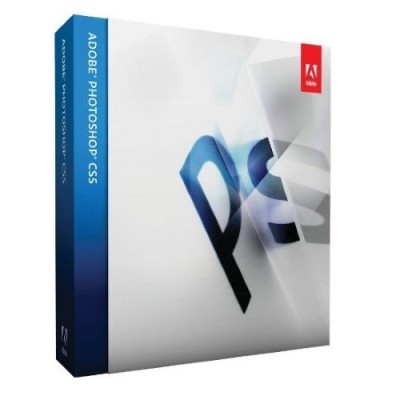
Adobe Photoshop CS5 Extended Serial Numbers


Adobe Photoshop CS5 Extended Serial Numbers ALL FRESH:-

1330-1681-1947-9973-4887-9856
1330-1305-9720-6744-8880-6206
1330-1807-1434-7787-2724-9847
1330-1162-1098-8524-5189-8123
1330-1875-1855-6864-3126-7573

1330-1130-9752-1642-3535-0727
1330-1098-1473-1958-4787-9730
1330-1590-3893-5750-8075-6625
1330-1102-8841-6669-3776-0827
1330-1346-9904-2001-2235-7252
1330-1738-2960-4360-1076-2330
1330-1106-3088-2889-5934-3982

Adobe Photoshop CS6 Serial Number and CS6 Full Crack Download

Adobe Photoshop CS6 Serial Number and CS6 Full Crack Download

will give you the easiest way to buy Windows product keys online, such as Adobe Photoshop CS6. With genuine Adobe Photoshop CS6 key, you’ll access the Adobe Software easily and smoothly.
Adobe Photoshop is the latest version of adobe’s Raster Graphic Editor where CS stands for “Creative suite” so CS5 is Adobe Photoshop Creative suite 6. The company has launched two editions of cs6 named “Adobe Photoshop CS6 premium” and “Adobe Photoshop CS6 Extended“. The key difference between premium edition and extended one is extended one comes with some additional plugins and features.
No Doubt Photoshop cs6 is the top most graphic editor right now available in the market. Here we have CS6 premium serial key and CS6 extended serial key for you guys.
Photoshop Cs6 download and Cs6 crack
There is no Rocket Science behind getting your system Photoshop cs6. It is as easy as getting your system a new operating system. If you are looking to install a new windows, this article might help you- windows 7 product key. for now you are here to install and crack Photoshop cs 6 in your system . To get that you just need to download cs6 from Adobe’s official site and install it your PC. do Remember that at first it will allow you to use and try cs6 for a limited period of time for free than you have to enter serial number of adobe Photoshop cs6 which sometimes referred as  license key for Photoshop cs6.
Both terms stands equal and that is basically a set of numbers. 5 sets of 4 number totaling 20 number combination to unlock or crack your Photoshop cs6. a noticeable thing here in cs6 is that Photoshop cs6 serial is just numbers combination unlike windows product key where serial key is a combination of letters and numbers. So don’t get confused guys. Just use the serial key Photoshop cs6 in your Photoshop cs6 crack from the list below. try keygen one by one.

image
Adobe Photoshop CS6 premium Serial number
1330-1903-8430-6965-5066-7797
1330-1432-3831-6833-2544-0251
1330-1197-9752-8394-2011-8121
1330-1030-7045-9470-6140-9141
1330-1595-6290-1452-7185-4110
1330-1934-8633-1998-4544-4196
Adobe Photoshop CS6 Extended serial number
1330-1971-4830-5668-6067-1762
1330-1544-4195-8131-3034-5634
1330-1912-2628-0850-0232-4869
1330-1886-0283-4488-9152-2034
1330-1544-4195-8131-3034-5634
1330-1118-3174-6558-6067-1762
Things to notice before Photoshop CS6 crack
Before you guys complain about not working! keep this in mind. You have to follow following instruction to successfully crack your cs6
   Turn off your wifi and internet connection.
    clear cache.
   Install the Photoshop cs6
    copy and paste serial number cs6.
   click on connect later.
   open Photoshop.
So guys enjoy your full cracked cs6 and do some creative editing for god sake! don’t just put make up. 😛 or add mass to your biceps using liquify. Use your creativity and make some serious shit! Remember Photoshop cs6 download and always use Adobe Photoshop CS6 Serial Number from here.
Thanks

Tuesday, 11 December 2018

What Is Christmas: Understanding the History and Origin

Christmas is so full of wonder, meaning and tradition. But, where did all these things that we now call "Christmas" come from? Let's briefly sketch the origin and development of what we now celebrate as Christ's birth.
Below we will look at the origins of Christmas, holiday traditions (and their Christian significance!), favorite Christmas carols, Scripture about the nativity story and birth of Jesus, and history you might not know: 
What is Christmas and When Did it Start
Christmas is the annual Christian festival celebrating Christ's birth, held on December 25 in the Western Church. The traditional date of December 25 goes back as far as A.D. 273. Two pagan festivals honoring the sun were also celebrated on that day and it is possible that December 25 was chosen to counteract the influence of paganism. To this day some people feel uncomfortable with Christmas because they think it is somehow tainted by the pagan festivals held on that day. But Christians have long believed that the gospel not only transcends culture, it also transforms it. In A.D. 320 one theologian answered this criticism by noting, “We hold this day holy, not like the pagans because of the birth of the sun, but because of him who made it.” 
The Dates of Christmas
Why do we celebrate on December 25th?
There are two specific theories for why we use the date of December 25th for Christmas.
First, People and religion of the day celebrated some sort of holiday around that time. From Jewish Chanukah to Pagan Winter Solstice to Germanic Yule to Roman Dies Natalis Solis Invicti (Birth of the Unconquered Sun); the sheer number of celebration days with their trees, decorations, yule logs, mistletoe and feasts seem to point to a season of celebration to which Christians added the birth of Jesus as a counter-cultural event and possibly even an escape from the pagan holidays for early believers.
December 25th was the Saturnalia Festival of emancipation, gift giving and the triumph of light after the longest night. The Christian sees the truth implicit in this pagan tradition that reflects: Christ the Light of the world, His triumph over the night of sin in Luke 1:78-79:
"...Because of the tender mercy of our God, by which the rising sun will come to us from heaven 79 to shine on those living in darkness and in the shadow of death, to guide our feet into the path of peace.”
Second theory centers around the date “accepted” by the Western Church of March 25 as the Annunciation or Immaculate Conception of Jesus in Mary’s womb. December 25 is 9 months later and thus celebrated as the birthday of Jesus. Regardless of the possible reasons for the date, the Church calendar was set in the West during Constantine’s reign while the Eastern Church held onto the date of January 6 for some time. 
The Origin of Christmas Eve
For centuries, Christmas was celebrated not as a single day, but as a whole season in parts of the world, beginning with this day, December 24, Christmas Eve. Perhaps the practice of celebrating the evening before the big day is an echo from ancient Jewish reckoning. Among earlier Jews, a day began at six in the evening and ran until six the following evening. Had not Moses written: "An evening and a morning were the first day"?
Christmas means "Christ-mass." Although the date is a guess, the tradition of observing it goes back to at least the fourth century. Under the influence of the church, Christian traditions replaced pagan solstice festivals throughout Europe. Often the more innocent pagan practices (such as bringing in a Yule log, decorating with holly and the like) were carried over into the Christmas observance, transfigured with new meaning.
The Christian Meaning Behind Ancient Traditions
Evergreen Trees were the symbol of eternal life. Martin Luther introduced them to the Reformation Church as a picture of our endless life in Christ, by bringing in a tree to his family on Christmas Eve lit with candles (Isaiah 60:13).
Candles are a picture that Christ is the Light of the world (John 8).
Holly speaks of the thorns in His crown (Matthew 27:29).
Red is a color of Christmas that speaks of Christ's blood and death.
Gifts are a reminder of the gifts of the Magi to baby Jesus. Each of them speak to a component of His incarnation: Majesty in life, Bitterest Agony in Death and He as Gods Perfect gift to us (Matthew 2).
More Holiday Traditions
The Yule Log was a symbol by which all the men in the family would carry a log large enough to burn for 12 days into the house. They were identifying with Christ and His Cross. The fire was started with a fragment from the previous years [this refers to the eternal existence of Christ before His birth] log. It speaks of warmth, unity, joy and the security of endless life.
Mistletoe was an ancient symbol from the Roman times. It was under Mistletoe that old enmities and broken friendship were restored. So Christ was the One who took away the enmity and gave us Peace with God (Romans 5:1; Romans 8:1).
Bells are associated with ringing out news. Christ is the good news, the best news of all.
Modern Traditions
In 1822 Clement Moore wrote a poem for children that has never been forgotten. It was entitled, "Twas the Night before Christmas..."!
Santa Claus is a Dutch word that is actually Sinter Claus, Saint Nicholas in English.
Saint Nicholas was the supposed early Bishop of a church in Asia Minor [the modern country of Turkey]. He became aware of some desperate needs in his congregation, and a family having to sell their children into slavery, so one night he came and left money on their doorstep. It was gold in a stocking
Christmas Cards started in 1844. An English artist named William Dobson, drew up some pictures in England for use at this season. They found local use there and soon spread to America. In 1846 Cole and Horsley saw the commercial potential of this growing tradition and started the production of what is now over a $1,000,000,000.00 industry, that sees 4 billion cards sent each year in America alone. 

What Is Christmas: Understanding the History and Origin
Bible / Bible Study / Topical Studies / What Is Christmas: Understanding the History and Origin

Christmas is so full of wonder, meaning and tradition. But, where did all these things that we now call "Christmas" come from? Let's briefly sketch the origin and development of what we now celebrate as Christ's birth.
Below we will look at the origins of Christmas, holiday traditions (and their Christian significance!), favorite Christmas carols, Scripture about the nativity story and birth of Jesus, and history you might not know:
What is Christmas and When Did it Start
Christmas is the annual Christian festival celebrating Christ's birth, held on December 25 in the Western Church. The traditional date of December 25 goes back as far as A.D. 273. Two pagan festivals honoring the sun were also celebrated on that day and it is possible that December 25 was chosen to counteract the influence of paganism. To this day some people feel uncomfortable with Christmas because they think it is somehow tainted by the pagan festivals held on that day. But Christians have long believed that the gospel not only transcends culture, it also transforms it. In A.D. 320 one theologian answered this criticism by noting, “We hold this day holy, not like the pagans because of the birth of the sun, but because of him who made it.”

This content was adapted from "Christmas Eve" by Dan Graves.
The Dates of Christmas
Why do we celebrate on December 25th?
There are two specific theories for why we use the date of December 25th for Christmas.
First, People and religion of the day celebrated some sort of holiday around that time. From Jewish Chanukah to Pagan Winter Solstice to Germanic Yule to Roman Dies Natalis Solis Invicti (Birth of the Unconquered Sun); the sheer number of celebration days with their trees, decorations, yule logs, mistletoe and feasts seem to point to a season of celebration to which Christians added the birth of Jesus as a counter-cultural event and possibly even an escape from the pagan holidays for early believers.
December 25th was the Saturnalia Festival of emancipation, gift giving and the triumph of light after the longest night. The Christian sees the truth implicit in this pagan tradition that reflects: Christ the Light of the world, His triumph over the night of sin in Luke 1:78-79:
"...Because of the tender mercy of our God, by which the rising sun will come to us from heaven 79 to shine on those living in darkness and in the shadow of death, to guide our feet into the path of peace.”
Second theory centers around the date “accepted” by the Western Church of March 25 as the Annunciation or Immaculate Conception of Jesus in Mary’s womb. December 25 is 9 months later and thus celebrated as the birthday of Jesus. Regardless of the possible reasons for the date, the Church calendar was set in the West during Constantine’s reign while the Eastern Church held onto the date of January 6 for some time. 

The Origin of Christmas Eve
For centuries, Christmas was celebrated not as a single day, but as a whole season in parts of the world, beginning with this day, December 24, Christmas Eve. Perhaps the practice of celebrating the evening before the big day is an echo from ancient Jewish reckoning. Among earlier Jews, a day began at six in the evening and ran until six the following evening. Had not Moses written: "An evening and a morning were the first day"?
Christmas means "Christ-mass." Although the date is a guess, the tradition of observing it goes back to at least the fourth century. Under the influence of the church, Christian traditions replaced pagan solstice festivals throughout Europe. Often the more innocent pagan practices (such as bringing in a Yule log, decorating with holly and the like) were carried over into the Christmas observance, transfigured with new meaning.
This content was adapted from "Christmas Eve" by Dan Grave.

The Christian Meaning Behind Ancient Traditions
Evergreen Trees were the symbol of eternal life. Martin Luther introduced them to the Reformation Church as a picture of our endless life in Christ, by bringing in a tree to his family on Christmas Eve lit with candles (Isaiah 60:13).
Candles are a picture that Christ is the Light of the world (John 8).
Holly speaks of the thorns in His crown (Matthew 27:29).
Red is a color of Christmas that speaks of Christ's blood and death.
Gifts are a reminder of the gifts of the Magi to baby Jesus. Each of them speak to a component of His incarnation: Majesty in life, Bitterest Agony in Death and He as Gods Perfect gift to us (Matthew 2).

More Holiday Traditions
The Yule Log was a symbol by which all the men in the family would carry a log large enough to burn for 12 days into the house. They were identifying with Christ and His Cross. The fire was started with a fragment from the previous years [this refers to the eternal existence of Christ before His birth] log. It speaks of warmth, unity, joy and the security of endless life.
Mistletoe was an ancient symbol from the Roman times. It was under Mistletoe that old enmities and broken friendship were restored. So Christ was the One who took away the enmity and gave us Peace with God (Romans 5:1; Romans 8:1).
Bells are associated with ringing out news. Christ is the good news, the best news of all.
Modern Traditions
In 1822 Clement Moore wrote a poem for children that has never been forgotten. It was entitled, "Twas the Night before Christmas..."!
Santa Claus is a Dutch word that is actually Sinter Claus, Saint Nicholas in English.
Saint Nicholas was the supposed early Bishop of a church in Asia Minor [the modern country of Turkey]. He became aware of some desperate needs in his congregation, and a family having to sell their children into slavery, so one night he came and left money on their doorstep. It was gold in a stocking.
Christmas Cards started in 1844. An English artist named William Dobson, drew up some pictures in England for use at this season. They found local use there and soon spread to America. In 1846 Cole and Horsley saw the commercial potential of this growing tradition and started the production of what is now over a $1,000,000,000.00 industry, that sees 4 billion cards sent each year in America alone. 

This content was adapted from the original article "The Origin of Christmas Traditions and Christ's Birth" by Dr. John Barnett.

The Origin of the Christmas Tree
Among the many accounts claiming to explain the origin of the Christmas tree, the three most popular are from Germany — making it the likeliest place of origin. The stories span from the 8th to the 16th century. All three have some element of historical fact, and they may even loosely connect from one to another.

1. The first story is about St. Boniface. In the 8th century, he was a missionary to some of the remotest tribes of Germany. He is probably best known for what is called the “Felling of Thor’s Oak.” It is said that upon entering a town in northern Hesse (Hessia), Boniface learned that the people worshiped the god Thor who they believed resided in a great oak tree among them. Boniface determined that if he wanted to earn an audience with the people, he would have to confront Thor. He announced before the people that he was going to cut down the oak, and he openly challenged Thor to strike him down. Miraculously, as Boniface began to chop the oak, a mighty wind blew and hurled the tree to the ground. Tradition holds that a fir tree was growing in the roots of the oak, and Boniface claimed the tree as a symbol of Christ. Needless to say, the people readily accepted Boniface’s message, and the tree eventually came to be associated with the birth of Christ and a celebration of the day when the mighty God (who could hurl a gigantic oak to the ground) chose to humbly enter the world as a babe.

2. Another possible source of the Christmas tree (and probably the most likely) comes from medieval religious plays in Germany. Among the most popular of these plays was the “Paradise” play. It started with the creation of man, acted out the first sin, and showed Adam and Eve being expelled from Paradise (the Garden of Eden). It closed with the promise of a coming Savior, which made the play a particular favorite during the Christmas season. In the play, the Garden of Eden was most often represented by a fir tree hung with apples and surrounded by candles.

3. A third tradition about the origin of the Christmas tree attributes it to Martin Luther, an influential leader of the Reformation. Some say that on Christmas Eve, Luther was walking through the woods near his home. He was struck by the beauty of how the snow shimmered in the moonlight on the branches of the trees. In an effort to re-create the magnificent sight for his family, he cut down the tree, placed it in his home, and decorated it with candles.

Saturday, 1 December 2018

Computer hardware

Computer hardware is the physical parts or components of a computer, such as the monitor, keyboard, computer data storage, hard disk drive (HDD), graphic cards, sound cards, memory (RAM), motherboard, and so on, all of which are tangible physical objects.


How can technology make a Nigeria child a better citizen

 Nigeria is a country with a growing population of children, who are the future leaders of the nation. Therefore, it is important to prepare...